Stripchat Mobile Review
Stripchat’s mobile access centres on its website and a Progressive Web Application, or PWA, for Android and iPhone. The practical appeal is straightforward: you can open the service in a mobile browser and use home-screen access without searching for a separate APK. The important usability questions are what happens after that first tap: can you read the terms, control the session, check a purchase and reach help comfortably on a small screen?
For readers in India, convenience also needs to fit the payment and network conditions of the actual account. A phone does not make every payment method available, turn a displayed token rate into a final INR charge or remove records from email and banking apps.
The mobile experience is best approached as a set of connected tasks. Browsing, signing in, granting permissions and approving a purchase should each be deliberate choices. An app-like window is convenient, but the account and payment conditions still deserve the same attention as on a desktop.
Website or app on Android and iPhone?
The official mobile-app guidance describes a PWA for both iOS and Android. It directs users to open the official website in a mobile browser and follow the installation banner above the header for home-screen access. It also states that Stripchat does not distribute a standalone App Store, Google Play or APK app.
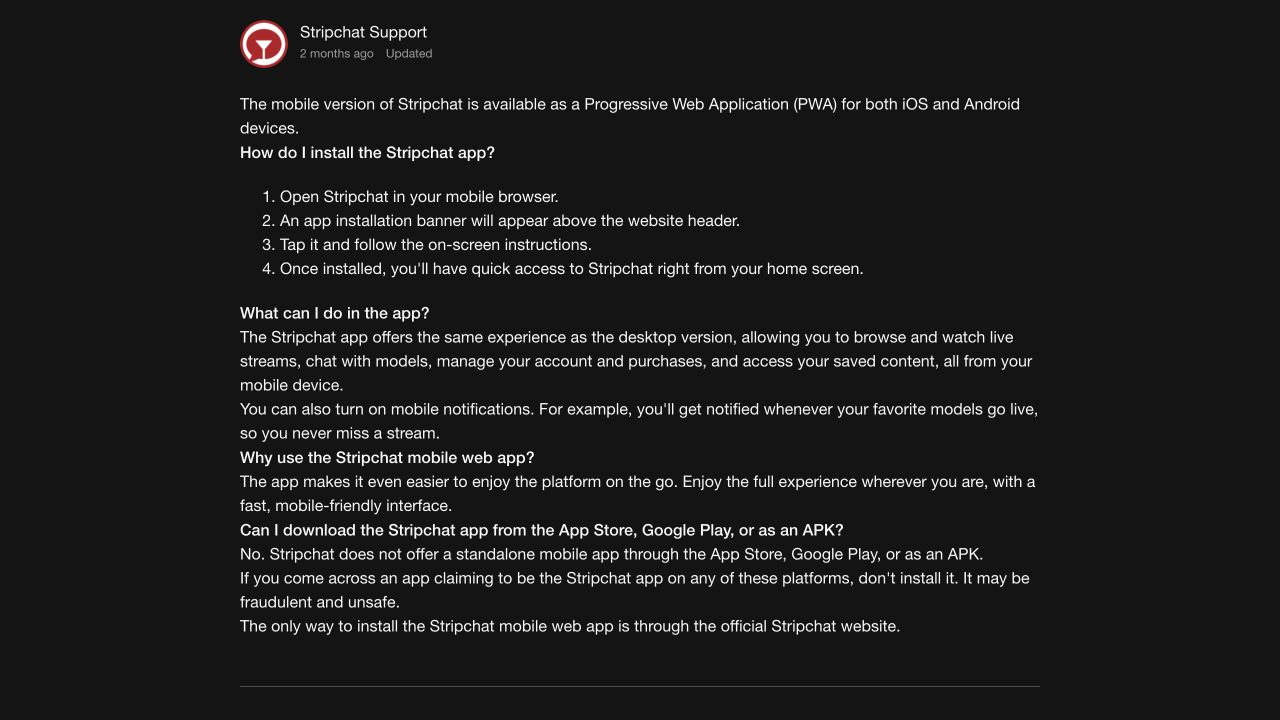
The same guidance describes browsing, chat, account and purchase management, saved content and optional notifications. These features make the web app more than a bookmark to a help page, but their availability does not mean every action is equally convenient on every device.
Use the browser version first if you only need occasional access. Home-screen access may be useful for repeat visits, provided you are comfortable with the visible icon and notification choices. If the expected installation option is missing, check the genuine instructions rather than substituting an installer from a download site. Our app and APK safety guide explains that distinction.
Android browser access
Chrome’s Android web-app instructions describe installation through the browser’s menu and the site’s supported installation flow. Menu wording can vary with the browser version. Use the options shown by the genuine browser and website; a downloaded package is a different route.
Keep the browser updated through its normal update channel. If an old shortcut opens an unexpected address or page, return to the genuine site independently before signing in. A familiar icon should not substitute for checking where you are entering account details.
iPhone browser access
Safari provides bookmark and home-screen controls described in Apple’s iPhone guide. Follow the instructions appropriate to the iOS version on your phone, alongside Stripchat’s own PWA guidance.
A home-screen web app, a Safari tab and a native App Store app are different forms of access. Do not assume they share every permission, notification or sign-in behaviour. If switching between them changes what you see, first confirm the account and current session rather than creating another account or repeating a payment.
Navigation on a small screen
A useful mobile layout should make the next action clear without making a payment or session control look like an ordinary navigation button. Before entering a paid interaction, identify where its conditions and stop control are shown. Keep enough of the interface visible to understand what the next tap will do.
Long titles, translated text and an on-screen keyboard can leave much less room for controls. If a confirmation is cut off, pause and adjust the view or dismiss the keyboard before proceeding. Rotating the phone may help some layouts, but it should not be necessary to guess a hidden price or confirmation.
For account tasks, go to the relevant account menu rather than looking for the same control in a room’s menu. A profile, a conversation, a purchase record and a platform setting are separate places. The distinction is particularly helpful when a small screen hides context that would be visible beside a desktop panel.
| Mobile task | What should be clear before you continue |
|---|---|
| Sign in | The genuine destination, correct account and authentication prompt. |
| Start a session | Its rate, billing unit, relevant conditions and how to end it. |
| Buy tokens | Package, amount, currency, payment method and confirmation. |
| Change a setting | What changes, whether it is saved and how to confirm its status. |
| Ask for help | The relevant topic, contact route and information needed. |
If a task is difficult to complete accurately on the phone, using a larger screen can be a sensible choice. Convenience matters less than understanding the action before you confirm it.
Purchases and billing records on mobile
Small checkout screens deserve an unhurried reading. Check the package, payable amount and currency, and any recurring or automatic-purchase option before approving a payment. Payment availability depends on the country and provider; the India payment-method guide explains why a method mentioned in general help may not be offered to a particular account.
A handoff to a payment app or provider can make it easy to lose track of the original checkout. Keep the purchase reference and wait for a clear status before trying again. Returning to the site, receiving a bank notification and seeing a matching credit in Token History are different observations.
If the balance has not changed, compare the account record with the bank or provider’s result. Avoid purchasing again merely to test the first attempt. Our missing-token guide covers the appropriate follow-up, including UPI purchases in INR.
Save relevant receipts somewhere you can find them later. Do not rely on a temporary success screen being available after a browser tab closes. For a cost estimate before a session, use the token calculator, then compare the estimate with the actual terms and purchase total.
Privacy on a personal or shared phone
Mobile privacy starts with who can see and unlock the device. A visible icon, browser tab, notification preview or receipt can reveal activity independently of the username shown on the website. Decide whether home-screen access and notifications suit the way the phone is used.
Private browsing does not make the website account or payment anonymous. Nor does closing a tab demonstrate that the account has been signed out or its records erased. The incognito guide explains the boundaries of local browsing privacy, and the privacy review covers account data and retention.
Read permission requests in relation to the feature you selected. Camera, microphone, photos and notifications have different purposes; a prompt should not be approved merely to clear it from the screen. Review permissions through the relevant browser or device controls if you change your mind.
On a shared phone, avoid leaving an authenticated account available to the next person. Be equally careful with the mailbox used for recovery: control of that mailbox can matter even when the website tab has been closed. The account-security guide covers passwords, authentication and recovery planning.
Finding support from the phone
The help centre is useful when a mobile checkout or account screen does not explain what happened. Stripchat’s transaction-support instructions direct users to Contact Support at the bottom of the page and ask for the purchase date, time, amount and a receipt if available.
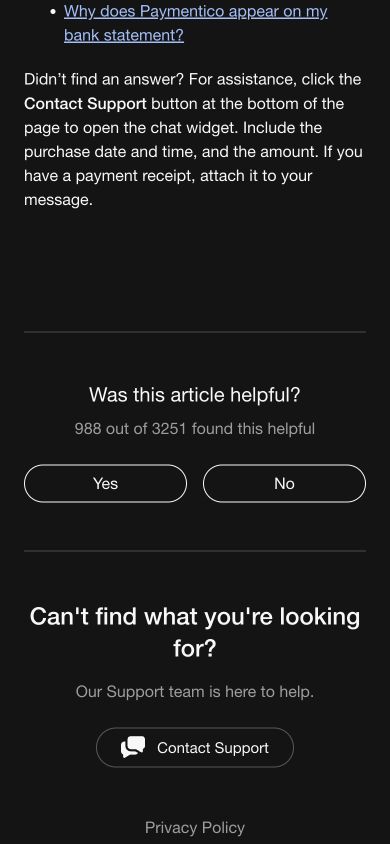
On a small screen, the button may be below the article and its helpfulness controls. Scroll to the page’s support area rather than using an unrelated contact advertised in a search result. The India support guide explains the widget, language selection and payment-provider routes.
For a technical issue, record the device, operating system, browser, exact error and the action that triggered it. For a payment issue, add the transaction reference and time zone. A cropped screenshot should preserve the useful context without exposing unrelated messages, financial details or authentication secrets.
If a widget opens but the keyboard covers the conversation, dismiss the keyboard to read the latest prompt before answering. Keep any case reference and continue the existing request where possible. A bot acknowledgement is different from a decision on a payment or account problem.
Loading, data use and interrupted sessions
Mobile performance depends on more than the phone’s screen size. Network quality, browser state, device resources and the content being loaded can all affect the experience. A stalled page on one connection is not enough to identify a service-wide outage.
If a page fails, note whether the issue affects the whole site or one function. Check ordinary connectivity and the browser’s genuine error message before changing account settings. Reopening a page may help with an ordinary loading problem, but repeatedly reloading a checkout can create confusion about its status.
During a paid interaction, use the service’s explicit end control and check the resulting status. Do not use a frozen picture, a switched app or a locked screen as proof that billing has ended. If the state is unclear after an interruption, preserve the relevant time and account records and ask support to investigate.
The loading and performance guide explains browser and connection comparisons. For a limited data plan, check usage through the phone or network provider rather than relying on a universal per-hour estimate. Video quality and time spent connected can change consumption. Home-screen installation should not be treated as a promise of offline live viewing or lower data use.
Who is mobile access most useful for?
A phone makes sense for short visits and routine account tasks when you can read the controls and keep the device private. Home-screen access can reduce the friction of repeat visits, while browser access avoids adding an icon you may not want.
A larger screen can be more comfortable for comparing payment records, reading lengthy conditions or preparing an appeal with several pieces of evidence. Switching devices does not change the underlying account conditions; it can simply make a complicated task easier to handle accurately.
The strongest reason to use the official mobile route is convenience with familiar account access. It is not a reason to accept an unknown APK, rush a checkout or ignore a permission request. Choose the form of access that lets you stay in control of the task.
Frequently asked questions
Can I use Stripchat on Android and iPhone without an APK?
Stripchat describes mobile-browser access and a PWA for both platforms. Follow the official website’s instructions rather than downloading a package from an unrelated page.
Is there an official App Store or Google Play app?
The mobile help says Stripchat does not distribute a standalone app through those stores or as an APK. Check that guidance when assessing a download claim.
Does the home-screen version change token prices or payment options?
Do not assume it does. Read the actual offer, currency and payment choices shown for the account. A shortcut or app-like window is not evidence of a separate India price or payment route.
Does private browsing hide purchases and notifications?
It should not be treated as controlling every record on the phone or at the bank and platform. Review notifications, the signed-in account, email receipts and payment records separately.
What if a mobile payment appears stuck?
Keep the original reference and compare the provider’s status with Token History before making another attempt. Use the missing-token instructions or genuine support for the particular transaction.